Get Started:
Filming Your Matches
Sport.Video makes recording sports simple – no editing or post production needed.
Step 1
Let’s get you
Set up
Sport.Video is designed to be simple and easy to use. Let’s get you set up in just a few quick steps.
1. Download the App
- A better phone = better video quality



Requires iOS 15+ / Android 8+
2. Sign In / Register
- If you were invited, please check your mailbox and create your user using the link in the invite email
- Log in to the app with your existing sport.video account
- Don’t have an account yet? You can create one directly in the app
3. Choose or create a channel
- Most users in an existing account may see a Playground channel for testing and one or more production channels
- New account users can either create a production channel or continue with the Playground
- Start with Playground to get familiar with the app (recommended)
- Switch to a production channel when recording real matches
Step 2 (Optional)
Discover the app in
Playground Mode
Playground is a safe space to learn the app
1. Follow the guided tutorial
- A short tutorial on first sign-in will guide you through recording a preconfigured match and capturing your first highlight
- Make sure to grant the app all requested permissions
- To end recording, pause the match and then end it
2. Review recording tips
- The app includes quick tips to help improve your recordings
- Be sure to check them out and follow them when recording real matches
3. Explore
- All settings are unlocked for you to try
- Playground videos are private and not visible to the public
- Practice camera view and zoom
Once you’re ready to film real matches…
Switch to your real production channel
Step 3
Get ready and setup a
Real Match
Make sure everything is ready, then select or create your game
1. Quick Check
- Check the battery and storage indicators on the dashboard and make sure they are not red
- It’s always good to be successfully synchronized
- Review your settings, such as video quality, overlays and on-device video saving
2. Set Up the Game
- Tap the Record button
- If a match is preconfigured → just select it
- Otherwise, set it up manually:
- Select competition
- Select teams
- Optionally choose a livestream option
3. Prepare to record
- Setup your tripod
- Adjust the zoom to fit your scene
- Keep our recording tips in mind
- Make sure to grant the app all requested permissions
Step 4
Filming a
Real Match
If you can use your phone’s camera, you can easily record with Sport.Video
1. Record
- Begin the game
- When a significant moment happens, tap the button next to the corresponding team and select the event
- Check and update score and time before resuming from a pause
2. Finish the game
- To finish recording, pause the match and then end it
- Optionally export the full match to your phone’s photo library
3. Review and share
- Review the recorded match and adjust highlights info if needed
- On a highlight, tap “Share video file” to share it directly on social media
- Check the Upload tab and make sure everything has been uploaded
🎉 Now keep those great recordings coming 🎉
Quick & Short
Recording tips
Keep these tips in mind – they’ll help you capture the best possible recordings
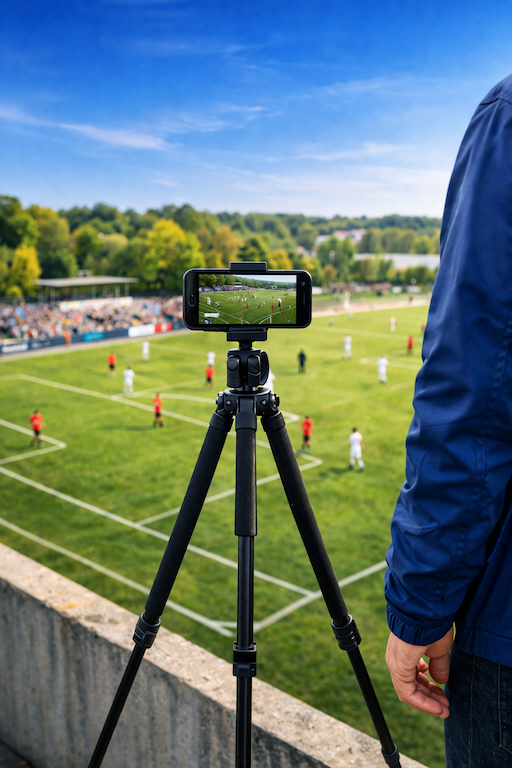
Use a tripod
Using a tripod will give your hands a break and ensure a stable, high-quality recording
High ground
Film from a central, elevated position to ensure you’re above the players heads

Watch the sun
Avoid filming directly against the sun – keep it preferably to the back or to the side
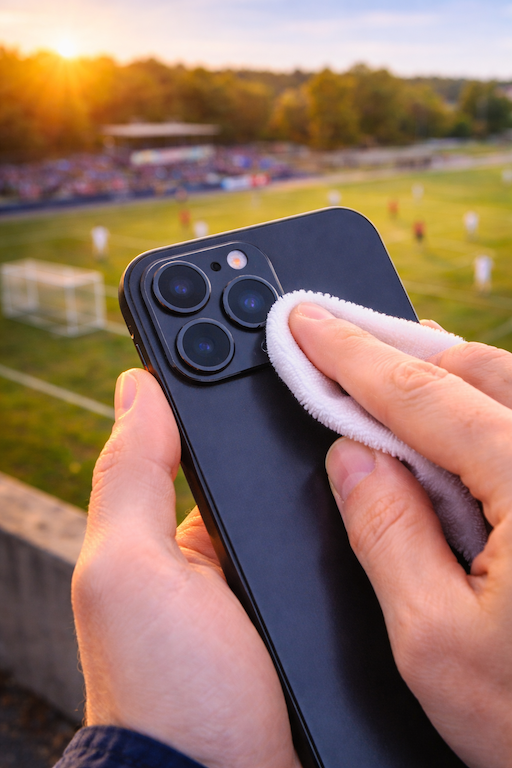
Clean your lens
Wipe your lens before recording to ensure a clear and crisp image
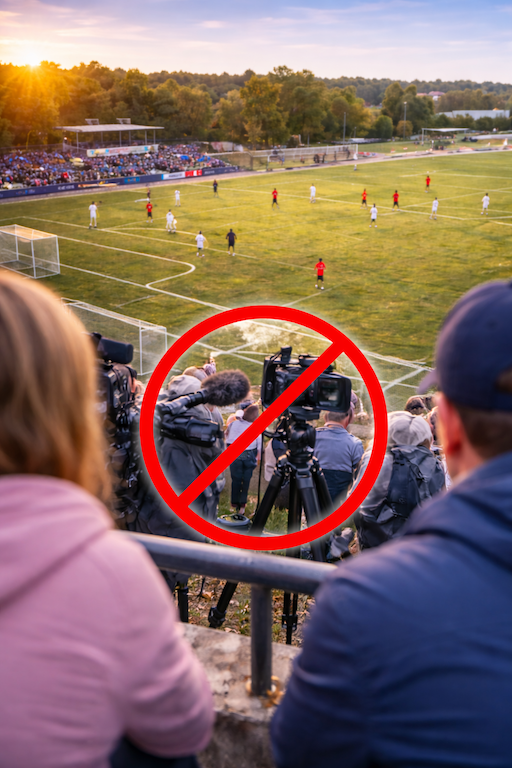
Avoid obstacles
Avoid visual obstructions like people or equipment in the frame
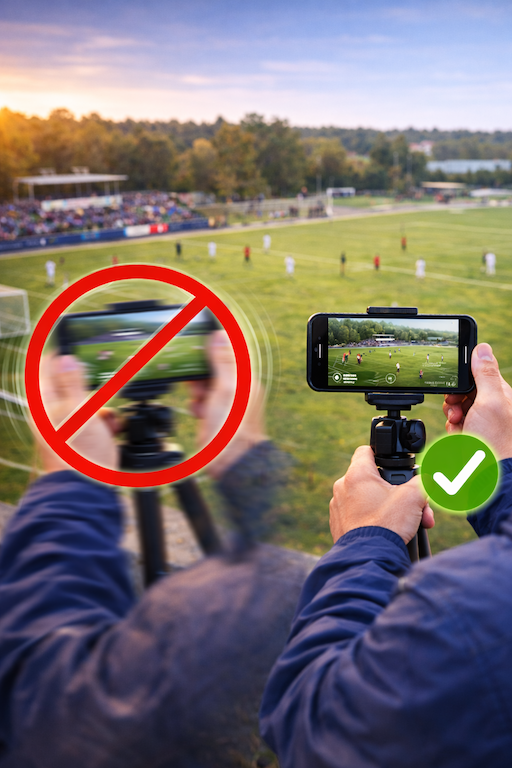
Don’t shake
Avoid shaking the device while recording – go for smooth, steady movements
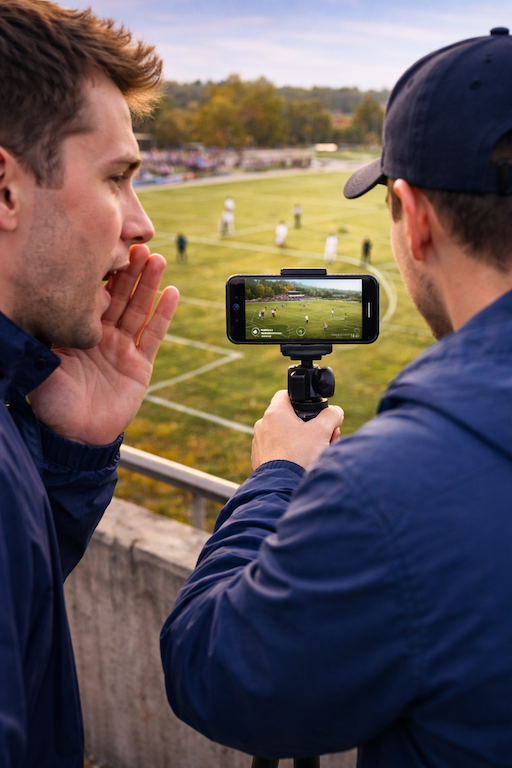
Pssssh…
Talking during recording is also captured – avoid speaking unless it’s intentional
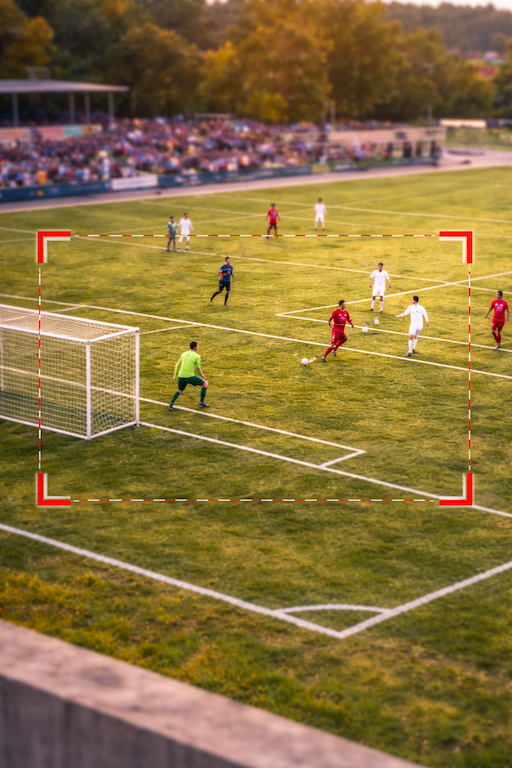
Follow the action
Use zoom when needed, but always maintain a clear overview of the action
Your Questions
Answered
New to Sport.Video? Create your account!
Livestream, capture, and share game highlights just
with a smartphone.
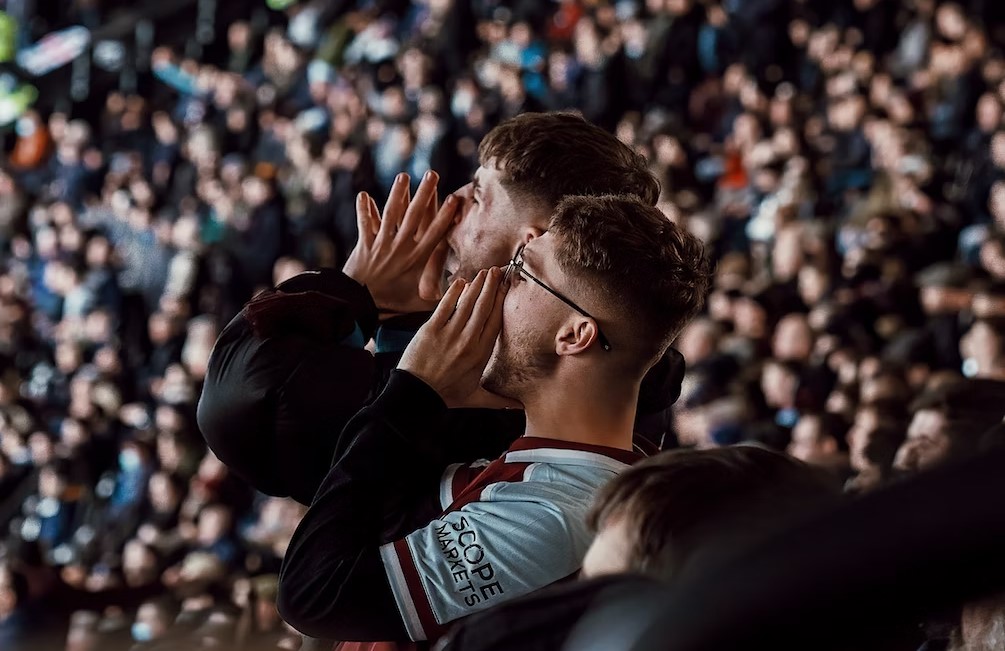

One solution to cover a wide
array of sports.
Sport.Video supports football, futsal, minifootball, ice hockey, floorball, field hockey, ball hockey, handball, american football, rugby and basketball. If your sport isn’t listed, reach out to us, and we will customize Sport.Video to meet your specific requirements.